
 Vaultic
Overview
The Vaultic dashboard — layout, navigation, and how it relates to the CLI.
The Vaultic web app is the dashboard for everything the CLI does, plus the things that only make sense as a UI: an environment matrix view, pending change approvals, member/invite management, access grants, secret trash, webhook management, and the audit log.
Signing in
Up to four options, each only shown if the server actually supports it (GET /auth/providers):
- Email/password — the original, always-available option unless a self-hoster switches it off. New signups go through email verification and (if the server has Cloudflare Turnstile configured) a CAPTCHA before the account is usable.
- Continue with GitHub / Continue with Google — OAuth, if the server has that provider's client credentials configured. A GitHub or Google login whose verified email matches an existing password-protected account never auto-links — you must confirm with your password first, since auto-linking purely by email is a known account-takeover vector.
- Secure SSO — type your work email; Vaultic looks up your email domain against configured SAML connections and, if one matches, redirects you to your organization's identity provider. See Settings → Security for how an admin sets this up, and note a workspace can require SSO for its domain, which blocks the other three options entirely for matching addresses.
The login page also handles vaultic login's browser-based flow (/cli-login): the CLI prints
a short code and this URL, you paste the code in and approve, and the CLI (which is polling
separately) picks up the token on its own. No localhost callback server is involved — the code
only ever travels by you copying it, so this works even when the page is opened on a different
device than the CLI is running on, e.g. over SSH.
Layout
Every authenticated page shares a persistent shell: a left sidebar and top bar, with the routed
page rendered in between. Cmd/Ctrl+K opens a command palette from anywhere.
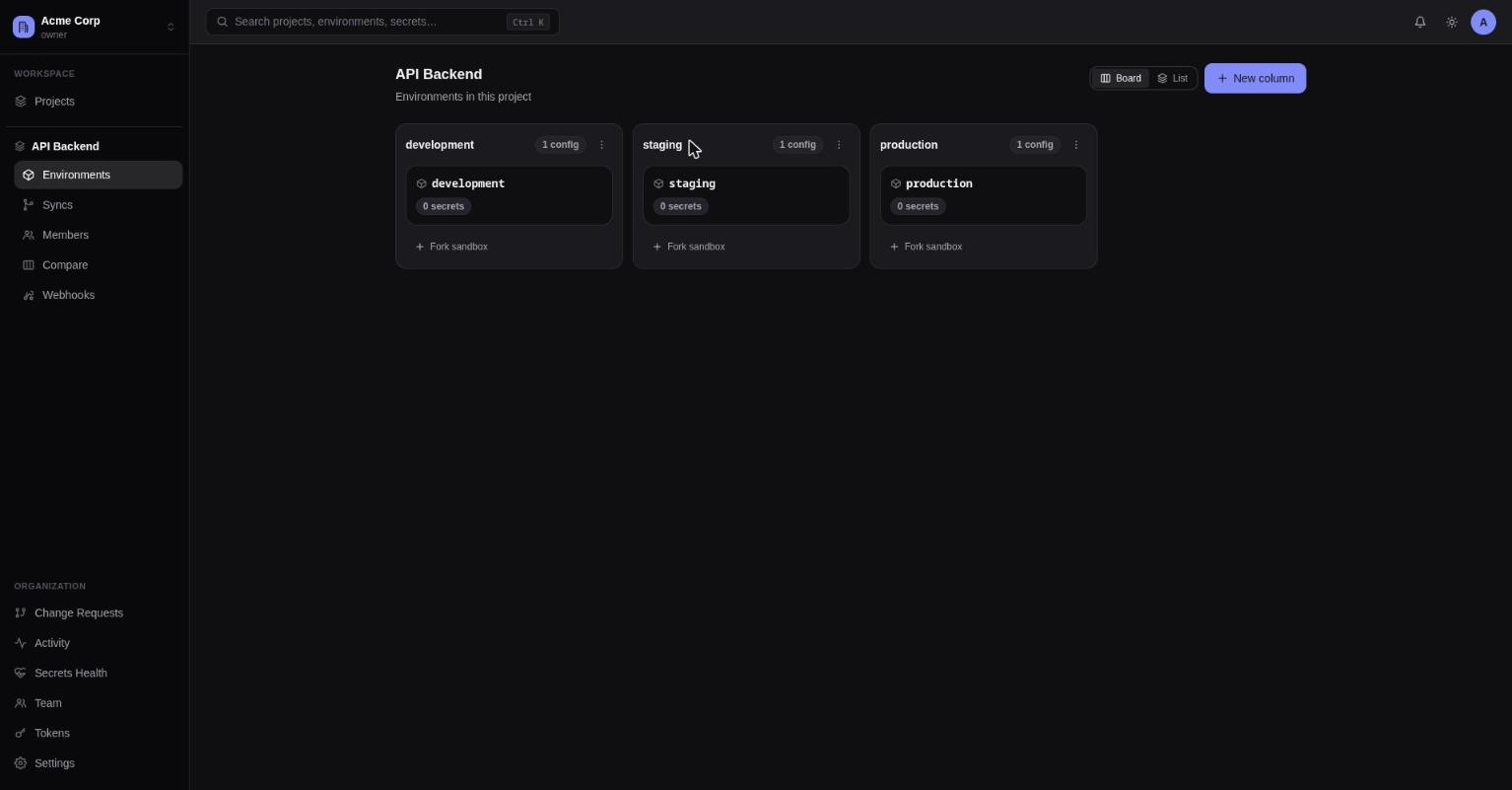
The sidebar has three sections:
- Workspace switcher (top) — current workspace name + role badge; a popover lists every workspace you belong to, plus a link back to "All workspaces".
- Workspace nav — a "Projects" link; once you're inside a project, this expands into a project sub-nav (Environments, Config Syncs, Members, Compare, Webhooks).
- Organization nav (bottom-pinned, visible anywhere inside a workspace) — Change Requests, Activity, Secrets Health, Team, Tokens, Settings.
The top bar has a notification bell (unread count badge, polling popover — invite notifications
and @mentions on secret comments land here, each read individually or all at once) and an
account menu (profile, and Your account for data export/deletion).
Navigation hierarchy
Workspace -> Project -> Environment -> Secrets | Config Syncs | Access | LogsWorkspaces, projects & environments
The full breakdown of each level in the hierarchy above.